Session replay
A replay of my actual session.Claude’s replies lightly edited for privacy and brevity, and the processing time compressed (real times shown on the longer steps).My own typing left as is, apart from a couple of names swapped for privacy: poor grammar and spelling mistakes intact.On larger screens, simple illustrations of what Claude was doing play alongside; the two screenshots are the real ones, faces blurred.
Press Play, then step through with Space or → (or tap). Auto-play runs it hands-free; Esc pauses. Or choose Reveal all to see the whole conversation at once. If you use a screen reader, Reveal all reads best. On a phone, turn it sideways for the illustrations.
Checking the connection to Resolve
Reading the open project
I'm connected and can see your Resolve:
- Version: DaVinci Resolve Studio 21.1
- Open project: the only project in your database so far
- Current page: Media, the page for bringing in footage
- Contents: no clips imported yet and no timelines
So you're starting from a blank slate, which is a good place to begin.
How I can help:
- Do things for you through Resolve's scripting: import footage, organise bins, build timelines, add markers, set up render jobs, make LUTs, and change project settings like resolution and frame rate.
- Explain things as we go. There are two things I can't do through the connection: click in the interface or see your screen. For those I'll talk you through it.
Quick map of Resolve: the page tabs along the bottom of the window follow the usual order of an edit:
- Media: import and organise your footage
- Cut / Edit: put clips together into a timeline
- Fusion: effects and motion graphics
- Color: grading, which is what Resolve is best known for
- Fairlight: audio
- Deliver: export the finished video
What are you working on? Tell me where the footage is on your Mac and what camera you shot on. I can import it, sort it into bins and set up the project to match.
Walking every folder in the Media Pool
Sorry, I missed them. My first check only looked at the top level of the Media Pool, and all your clips are inside folders. Everything is there, and it's well organised:
Master › Media: 24 location bins, about 580 clips
The bins are sorted by place and day. The biggest ones are:
- Recoletta Cemetary (Day 2): 105 clips
- San Telmo Market (Day 4): 80
- El Ateno Grand Splendid Bookstore (Day 2): 60
- La Boca (Day 5): 58
Media › Mic 2 Backup: about 270 DJI mic audio files, split into bins by day.
There are no timelines yet, so it looks like you're ready to start editing. Here are some things I could do next:
- Sync the backup mic audio to the video clips, so each clip has the clean DJI audio attached.
- Build a rough timeline that puts every bin in chronological order. That gives you a single long assembly to cut down.
- Make one timeline per location or day, which splits a 7-day trip into manageable chunks.
- Check your project settings (resolution and frame rate) against what your camera shot, before any timeline gets made. A mismatch here is the most common beginner mistake.
I'd start with #4. It takes me a few seconds and prevents problems later. Want me to check?
Reading the project settings
Checking every clip's resolution and frame rate
Your settings are right. The timeline matches the footage you shot most of.
| Setting | Value | Verdict |
|---|---|---|
| Timeline resolution | 3840×2160 (4K UHD) | ✅ Matches your footage |
| Timeline frame rate | 25 fps | ✅ Matches most of your clips |
| Colour | Rec.709, not colour-managed | ✅ Fine for this footage |
| Mismatched resolutions | Scale to fit | ✅ Sensible default |
- 257 DJI clips at 4K 25fps. These are most of your footage and match the timeline exactly.
- 31 clips at 23.976 or 24fps. Resolve will repeat about one frame per second to fit them into 25fps. You will very rarely notice this on travel footage.
- About 12 iPhone clips at 30fps or close to it. Resolve will drop about 5 frames per second from these. That's fine for normal footage, but slow pans can look slightly jerky.
- 6 vertical iPhone clips (2160×3840). These will show black bars on each side in a 16:9 timeline. That's normal.
You've set 25fps correctly before making any timelines, so you're in good shape.
Nothing needs changing. Next I'd look at the audio. Should I check how the DJI mic files line up with the video clips (dates and timecode) so we can plan the sync?
Pairing every WAV with its video
Comparing lengths and timecode
Looking up Resolve's sync options
Yes, that makes sense, and your media is set up even better than you thought. Waveform syncing probably isn't needed.
What I found in the location bins
- Every DJI video has a WAV with the same name sitting next to it in the same bin. For example,
DJI_20260623144333_0089_D.MP4sits next toDJI_20260623144333_0089_D.WAV. I checked all of them and none are missing a partner. - Each pair runs the same length, within one frame. That means the camera recorded the WAV at the same moment as the video. They start together, so they're already lined up.
- You're right about the timecode. The MP4s have timecode like
09:46:52:00, but every WAV starts at00:00:00:00, so Resolve's "sync by timecode" won't work.
The simpler way to sync
The partners start together, so we can line each WAV up with its video by their start points. This is Resolve's "sync by In point" mode, and Resolve's scripting can do it. I'd do it pair by pair so each MP4 can only ever be matched with its own WAV.
It's also safer than waveform syncing for your footage. Waveform matching can fail on quiet B-roll or noisy street clips, where the camera mic and the lav mic hear very different things. Start-point matching doesn't depend on the sound at all.
My suggestion
- Test one pair first. I'll sync the single clip in Air BnB (Day 2). You check that the lips match what you hear, and then I'll run the other pairs.
- Keep the camera's own audio as an extra track next to the mic audio. It's useful for background sound and costs nothing.
Should I run the test on the Air BnB clip?
In Resolve the synced clip won't be a new clip at all, which is the main difference from Avid.
How Avid does it
AutoSync makes a new object in the bin, a .sync subclip. Your original master clip and your WAV stay untouched, and you edit with the new sync clip.
How Resolve does it
Auto Sync Audio adds the WAV to the original video clip itself. The same video clip now carries the mic audio.
- No new clip appears.
- A small linked-audio icon appears on its thumbnail, or next to it in list view.
- The WAV stays in the bin as its own clip, unchanged.
- Nothing on disk changes. Resolve links to your files rather than copying or transcoding them, much like AMA linking in Avid. The sync is only a note in the project database.
- It can be undone. Right-click the clip and choose Unlink Synced Audio.
A few other Avid-to-Resolve translations
| Avid | Resolve |
|---|---|
| Project window bin list | Media Pool folder tree, with Master at the top |
| Master clip | Media Pool clip |
| Sequence | Timeline, which also lives in a bin |
| AMA link | Standard import, since Resolve always links to the files |
| Sync clip / subclip | Nothing separate: the master clip itself gets the audio |
One thing to watch out for
Resolve syncs the clip in place, so any timeline already made from that clip keeps its old audio. You have no timelines yet, so syncing now, before you edit, is the right time.
Want me to go ahead with the in-place test on the Air BnB clip?
Matching backup files to camera WAVs by filename
Re-matching with a few seconds of slack
Short version: the two sets of files are close copies of each other, but they don't start at exactly the same moment. So your instinct was right: the backup files would need waveform sync. The WAVs sitting next to each video don't.
What I compared
I compared the file details only: names, timestamps, lengths and formats. I can't listen to the audio through this connection, so I can't judge sound quality or wireless dropouts.
How they pair up
- 228 of your 271 camera WAVs have a backup file.
- The backup usually starts about 1 second before the camera. That fits how the mic works: its transmitter starts recording as soon as it gets the signal, slightly ahead of the camera.
- About 14 backups are shorter than their camera WAV, by up to 5 seconds.
Bins with no backup at all
| Bin | Coverage |
|---|---|
| Arrival (Day 1) | 0 of 8 |
| Coto Grocery Store (Day 2) | 0 of 10 |
| Car Daytime (Day 2, 3 & 4) | 0 of 8 |
| Quick Outdoor Lunch (Day 6) | 0 of 2 |
The Day 1:2 backup folder starts at 11:57 on Day 2. It looks like the mic's internal recording wasn't switched on until then.
Things worth knowing
- Day 4 has two mics. The
Mic#2folder is a second transmitter, probably a second person wearing a mic. - 13 backup files match no video. These are moments when the mic was recording but the DJI camera wasn't.
What I'd recommend
- Use the camera WAVs as your main audio. Sync them by start point, as planned.
- Keep the backups as a safety net. If you hear a dropout or glitch in a clip, waveform-sync that one backup file.
I haven't changed anything in the project. Should I go ahead with the one-clip test on Air BnB (Day 2) using its camera WAV?
Yes. A sync isn't strictly needed, and swapping the audio on your locked timeline would work. For your footage, though, syncing upfront costs almost nothing, so I'd still do it.
Why the swap works
Each camera WAV starts at the same moment as its video and runs the same length. So if a clip in your timeline uses 00:12:03 to 00:18:10 of an MP4, the matching mic audio is 00:12:03 to 00:18:10 of the WAV with the same name.
In Avid terms, it's close to handing off a locked cut and conforming it to the production audio, except it's done by filename instead of timecode.
Where the swap gets fiddly
- Split edits (J and L cuts): fine, as long as I work from the audio clips in the timeline rather than the video. I would.
- Speed changes and ramps: harder. I can copy a constant speed change across. Keyframed speed ramps would need a manual check.
- iPhone clips: have no WAV, so they're skipped automatically.
Why I'd still sync first
- You'd be cutting with the camera mic. For a travel vlog with people talking on camera, the lav audio affects which take and which line you choose. Scratch audio in noisy places like San Telmo or the subway can hide a great line, or make a bad one sound fine.
- In Resolve, syncing takes a moment. It doesn't create new clips or files. I can script all 271 pairs in about a minute, and it's easy to undo.
- Timelines you've already cut won't update if you sync later.
If you'd rather cut first and swap later, that's workable and I can handle it. Which do you want?
OK, go ahead and do the sync for Air BnB (Day 2) bin - there's only one clip in it
Looking up Resolve's audio sync settings
Syncing the clip in Air BnB Day 2
The sync worked. DJI_20260623130546_0052_D.MP4 now has its WAV attached, lined up exactly (offset 0).
What changed on the clip
| Before | After | |
|---|---|---|
| Audio track 1 | Camera audio (stereo) | Camera audio (stereo), unchanged |
| Audio track 2 | — | Mic WAV (mono), linked from the same folder |
- The bin still holds two clips, the MP4 and the WAV, as I described. No new sync clip was made.
- Nothing on disk changed. Resolve only recorded a link to the WAV file.
How to check it
- Double-click the MP4 to open it in the source viewer. You should see two audio waveforms.
- Play a section where someone is talking, and check that lips match what you hear.
One decision before I sync the other ~270
The mic is on track 2 and the camera audio is on track 1. Some editors prefer the mic on A1, so it's the first track in every timeline. I can swap them on this clip and use that order for the rest.
Let me know how it sounds and which track order you'd like, and I'll do the rest.
That's right. It shows the difference between channels and tracks in Resolve, which works differently from Avid.
Channels vs. tracks
- Channels are the raw audio streams the clip now has. There are 3: two from the camera MP4 and one from the WAV.
- Tracks decide how those channels get grouped when the clip goes into a timeline. Right now there are 2:
- Track 1: a stereo track made from channels 1 and 2 (camera)
- Track 2: a mono track made from channel 3 (mic)
How Avid does it
Avid generally treats every channel as its own mono track. This clip would appear as A1, A2 and A3, and you'd pan the camera pair left and right yourself. Resolve lets you group channels into stereo, mono, 5.1 and so on, and the camera pair stays together as one stereo clip.
Where to see it and change it yourself
Right-click the clip in the Media Pool, choose Clip Attributes…, then open the Audio tab. You can reorder tracks there, change their format, or mute one so it never comes into the timeline.
So the question from before still stands. For the rest of the clips, do you want:
- As is: camera stereo on track 1, mic on track 2
- Mic first: mic on track 1, camera stereo on track 2
- Mic first, camera muted: the timeline only gets the mic, and the camera audio stays on the clip
For a travel vlog, cutting both into the timeline is mostly useful flexibility. The one risk is easy to manage.
Why you'd want the camera audio in the timeline
- Ambience. The lav mic hears your voice. The camera hears the place: the market noise, the subway, street music. Adding a little camera audio under the mic makes scenes feel real instead of recorded in a studio.
- Other people. Unless they're wearing the mic, people who talk (your hosts, a vendor, a guide) are only on the camera audio.
- Rescue. If the lav rustles against clothing, clips, or drops out for a moment, the camera audio can cover that spot.
Where it causes trouble
- A hollow sound. If both play at full level while someone talks, they hear the same voice a split second apart (sound travels to the camera slightly later). The result sounds thin and hollow. It's the main thing to avoid.
- Clutter. Twice the audio clips to trim, and more chance of leaving a track on by mistake.
How editors usually handle it
Cut with both, with the mic on top.
- A1: mic. This is your main dialogue track at normal level.
- A2: camera. Keep it quiet by default, or mute the whole track while you cut, then bring it up where you want atmosphere.
It works like Avid: when you're building the story you listen to A1, and during the audio mix you decide how much of A2 to add.
My recommendation
Use option 2: mic on track 1 and camera stereo on track 2, both coming into the timeline.
Shall I reorder this clip to mic-first, check it, and then sync the rest the same way?
Looking up how scripting sets a clip's audio tracks
Reordering the test clip's tracks
Reading Resolve's audio mapping docs
Checking the new track order
Syncing 271 clips, bin by bin · 10 sec
Checking every clip's sync and track order
All 271 DJI clips are now synced and set up the way you chose, and I checked every one of them.
- Each clip is linked to the WAV with the same name in its own bin. The offset is 0 on all of them, so they line up exactly.
- The mic is on track 1 and the camera audio is on track 2 for every clip.
- The iPhone clips and photos were skipped, 39 items in all, because they have no WAVs.
- The WAV clips are still in the bins as separate clips, and nothing changed on disk.
The camera audio isn't the same on every clip
- 199 clips have stereo camera audio: A1 is the mic (mono), A2 is the camera (stereo).
- 72 clips have mono camera audio: A1 is the mic (mono), A2 is the camera (mono).
The camera recorded only one channel on those 72. That's usually a camera audio setting that changed at some point during the trip, not a problem with the files.
Two things for you to do
- Spot-check a few clips by ear. Pick any clip, check lip sync on A1, and listen to A2 for the camera audio.
- To undo a single clip, right-click it and choose Unlink Synced Audio.
Yes, you've got it. There are a few details worth knowing.
What you have right
- No new media was created. The sync is a set of instructions inside the project: "this MP4 also uses this WAV, starting at offset 0, with tracks arranged like this."
- No proxies or optimized media exist, so everything Resolve plays comes straight from the original files.
- The original files are untouched. Resolve never writes into your MP4s or WAVs.
The details
- The sync belongs to this project, and to these specific clips. Another project that imports the same files won't be synced.
- The links depend on file paths, much like AMA links in Avid. If you rename or move the files, or the drive mounts under a different name, the clips go offline and need relinking.
- When you finish, rendering creates new media, the way it does in Avid. Everything before that point is just pointers to your original files.
It's worth doing mainly because it costs almost nothing. I can tag all 72 clips in a few seconds. The benefit is modest, though.
When the tag helps
- Choosing ambience. If you pick a clip mainly for the atmosphere on A2, the stereo camera clips give a wider, fuller sound. A mono one sounds narrower, especially next to stereo clips. A tag tells you before you cut it in.
- Understanding what happened. If you work out why the camera switched to mono, you'll know which shoots it affected.
Ways to tag them, from least to most visible
| Method | Where you see it | Avid equivalent |
|---|---|---|
| Keyword | Media Pool metadata, searches and Smart Bins | Custom bin column |
| Comments field | Metadata panel, list-view column | Comments column |
| Flag | Media Pool thumbnails and the timeline | — |
| Clip colour | Media Pool and every timeline clip | Clip colour |
My recommendation
A keyword, plus a Smart Bin that lists every mono-camera clip. A Smart Bin is a saved search that updates itself, much like a Find bin in Avid that stays current. It keeps clip colours and flags free for editing decisions.
Scripting can add the keyword and the flag. I'm not sure it can create Smart Bins, so I might need to talk you through making that one. It takes about 30 seconds.
Want me to add the keyword, and should I include the flag?
Adding the keyword "Cam Audio Mono" to 72 clips
I've added the keyword Cam Audio Mono to all 72 clips with mono camera audio, and checked each one. None of the clips had keywords before, so nothing was overwritten.
Making the Smart Bin (about 30 seconds)
- In the Media Pool, right-click in the empty area of the bin list and choose Add Smart Bin.
- Name it
Cam Audio Mono. - Set the rule to Metadata – Shot & Scene › Keywords › contains ›
Cam Audio Mono. - Click Create Smart Bin.
Any clip that gets the keyword later appears in the Smart Bin automatically.
I may have the menu wrong for version 21. I can't see your screen, and Blackmagic has changed these menus between versions.
The Smart Bin dialog
The first dropdown in a rule groups fields into categories, and Keywords may be filed somewhere other than I said. Look through:
- Metadata – Shot & Scene (where I expected it)
- Any top-level entry called Keywords
- Media Pool Properties
- In v21, the list may also have a search field. Try typing "key".
A quick check that doesn't need any menus
Click in the Media Pool search box and type Cam Audio Mono. If the keyword search is working, the mono-camera clips should come up.
Let me know which one you're in and what options you see, and I'll get you to the right place.
Great, glad you found it. You now have a Smart Bin listing all 72 mono-camera clips, and it will add any clip that gets the keyword later.
Here's where the project stands:
- All 271 DJI clips are synced, with the mic on A1 and the camera on A2.
- The 72 clips with mono camera audio have the keyword Cam Audio Mono and are listed in the Smart Bin.
- The Mic 2 Backup files are untouched, saved for swapping in on the locked timeline where needed.
- No timelines exist yet.
Transcription is one of Resolve Studio's strongest features, and there are good equivalents to Avid's ScriptSync and PhraseFind. Here's what you can do with it.
1. Transcribe clips in the Media Pool
Right-click one or more clips and choose Audio Transcription › Transcribe.
- It runs on your Mac. Nothing is uploaded, and there's no extra cost with Studio.
- Speaker detection labels who is talking (Speaker 1, Speaker 2 and so on), and you can rename them.
2. Search what was said
Show the Transcription column in list view and search across the whole Media Pool. Finding "choripán" in San Telmo becomes a text search. Avid's closest equivalent is PhraseFind.
3. Edit from the text
Open a clip's transcript, highlight a sentence, and insert or append just that part to the timeline. There's also a remove silences tool that takes out pauses.
4. IntelliScript
You import a script or outline as plain text or Final Draft, and Resolve builds a timeline by matching lines to what was said in the transcripts.
5. Subtitles
Timeline › Create Subtitles from Audio generates captions for a finished timeline, which you can then edit and style.
Things to check before running it on everything
- Language. Your footage is probably mostly English with some Spanish. The Spanish passages will likely come out poorly with English selected, or the other way round.
- Which audio it listens to. Your clips now carry the mic on A1 and the camera on A2. I'm not certain which one Resolve transcribes. The mic will give much cleaner results, so it's worth testing.
I'd suggest a test on one talky clip, such as the long house tour clip at 4:53. Want me to run it?
Searching Resolve's scripting for transcription controls
Reading the project's transcription settings
Yes, I can start it, monitor it and use the results. Resolve's scripting has the pieces:
What I can control
- Start it on a single clip or a whole bin, including the bins inside it, with speaker detection on or off.
- Clear transcripts if we want to redo them, for example with a different language setting.
- Read every transcript in full. For each clip I get segments with start and end timecode, every word with its own timecode, and silences marked as gaps.
What that lets me do for you
- Search the whole trip for a word, a topic or a person, and give you clip names and timecodes.
- Summarise what happens in a bin, so you can tell what's in a 5-minute clip without watching it.
- Build a selects timeline from specific lines, similar to a ScriptSync workflow in Avid.
- Flag clips where the transcript looks garbled, which often points to wind noise, a dropout or the wrong language.
The limits
- I can only run each command for up to 60 seconds. A long batch keeps running inside Resolve while I check on it, but I'm not sitting there watching.
- The quality is Resolve's, not mine. I can read and fix up what it produces, but I can't hear the audio. If it mishears something, I'll only notice when the text doesn't make sense.
- I'm not sure which audio track it transcribes. This is part of what the test would show.
Shall I run the test on the house tour clip? I'd turn on speaker detection for it, then show you a sample of the transcript and what I can do with it.
Transcribing the house tour clip · 47 sec
Reading the transcript
Transcribing the mic WAV on its own · 27 sec
The test worked, and it turned up something useful: transcribing the MP4 doesn't use your mic audio. Transcribing the WAV on its own gives a noticeably better result.
| Transcribing the MP4 | Transcribing the WAV only | |
|---|---|---|
| Time taken | 45 s | 26 s |
| Speakers | 2 | 2 |
| Your host's lines | Many missing | Mostly caught |
| Timecode | Camera timecode (10:41:41…) | Starts at 00:00:00:00 |
What the difference shows
The first 20 seconds make it clear. The WAV transcript has your host saying (redacted) and (redacted). The MP4 transcript has none of those lines.
So when you transcribe the MP4, Resolve seems to listen to the camera's own audio, not the synced mic on A1. That's my inference from the results. It isn't documented anywhere I can check.
How good it is
- Accurate for most of it.
- Spanish gets mangled. "Lo siento" came out as "Los siento" in one version and "No sieme" in the other. "Parrilla" became "parisia".
- It's usable for searching and finding moments. Subtitles would need a proofread.
The catch with transcribing the WAVs
Their transcripts are stored on the WAV clips, not the MP4s. They start at 00:00:00:00 instead of the camera timecode, so when you open the MP4's transcript in the interface, you'd still see the weaker version.
Two ways around it
- Transcribe the WAVs and let me handle the timecode. Each WAV starts at the same moment as its MP4, so I add the MP4's start timecode to any WAV timecode, which is simple arithmetic.
- Give each WAV its MP4's start timecode first, then transcribe the WAVs. Their transcripts would then carry the camera timecode.
I'd go with option 2, tested on this clip first.
Enjoy dinner, and tell me which way you want to go when you're back.
Short answer: it doesn't combine them. Each clip keeps its own transcript.
Where transcripts live
A transcript is stored with one Media Pool clip, in the project database, like a comment or a keyword. It's timed against that clip's own timecode. Syncing doesn't merge transcripts, so right now:
- The MP4 has one transcript, made from whichever audio Resolve listened to (it looks like the camera audio). It uses camera timecode.
- The WAV has its own separate transcript, starting at 00:00:00:00.
- Syncing linked the WAV's audio to the MP4, but not its transcript.
The exception is Create Subtitles from Audio. It transcribes the timeline's audio as it plays, not the clips' stored transcripts, so it would hear your mic on A1.
A possible third option
Resolve might transcribe only the audio tracks that aren't muted on a clip. If so, there's a simpler fix than moving transcripts around:
- Mute the camera track (track 2) in the MP4's clip attributes.
- Clear the MP4's transcript and transcribe it again. With luck it now hears only the mic.
- Unmute the camera track, so it comes into timelines as normal.
I'm not sure Resolve behaves this way. Testing it on the house tour clip takes under a minute and changes nothing permanently.
Want me to try it?
Fair challenge. I said more than I actually know.
What I actually observed
The MP4's transcript missed lines that the WAV's transcript caught. That's the only fact.
What I concluded from it, and shouldn't have stated as fact
I said it "listens to the camera's own audio." That's one explanation, but there are at least three:
- It only reads the audio embedded in the MP4 and ignores anything linked. If so, muting a track does nothing, exactly as you say.
- It reads the clip as currently set up, and mixes all active tracks: mic plus camera. Then the camera audio would muddy the mic, which would also explain the missed lines. In that case muting the camera track would help.
- It reads only the first track or two. Because of the layout we chose, track 1 is now the mic. But the mic did better on its own, so this seems least likely.
My test can't tell these apart. Muting wouldn't be tricking Resolve. It's a way to find out which explanation is true.
Is it worth testing?
It's cheap: under a minute, and fully reversible. If it fails, we fall back to transcribing the WAVs, which we know works.
Muting the camera track and clearing the old transcript
Transcribing the clip again · 28 sec
Unmuting the camera track
It worked. Resolve transcribes whichever audio tracks are active on the clip. So explanation 2 was the right one, and you were right to make me test it rather than assume.
What happened
- I muted the camera track (track 2) on the MP4 and cleared its old transcript.
- I transcribed it again. It took 27 seconds.
- I unmuted the camera track. The new transcript stayed on the clip.
The result
The new MP4 transcript is essentially the same as the mic-only WAV transcript, and it uses camera timecode. All the lines from your host that were missing before are there now:
10:41:45:07 [Speaker 2] (redacted)
10:41:47:21 [Speaker 2] (redacted)
10:42:01:20 [Speaker 2] (redacted)
The first attempt mixed the camera audio in with the mic, and that is what muddied it.
What a full run would look like
For each of the 271 DJI clips: mute the camera track, transcribe, then unmute. At about 27 seconds for a 5-minute clip, the whole trip should take roughly an hour or two of processing, done in batches. I'd check each batch as it goes and tell you about any clip that fails or comes back empty.
Do you want me to go ahead with the full run? It could run while you're doing something else.
Counting what's left in the bin
Muting, transcribing and unmuting, batch 1 of 4 · 41 sec
Batch 2 of 4 · 46 sec
Batch 3 of 4 · 34 sec
Batch 4 of 4 · 17 sec
Reading all 22 transcripts
The whole House Tour (Day 3) bin is transcribed from the mic, at camera timecode. That's all 22 clips.
How it went
- No failures. Every camera track is unmuted again, and I checked.
- Processing took about 3 minutes for 22 minutes of footage.
- Auto language worked per clip. 3 clips were picked up as Spanish and transcribed in Spanish: the ordering at the bakery. Everything else came out in English.
- 6 clips have no speech. They're B-roll or silence.
Mistranscriptions to expect
Most errors are Spanish words: "facturas" became "bakturas"/"pakturas". English is very clean. It's fine for searching and finding moments, and would need a proofread for subtitles.
Whenever you're ready, I can run the same process on the other bins. It's about 250 more clips.
Transcribing 5 bins, 57 clips · 2 min 3 sec
Checking every camera track is unmuted
All 5 bins are done: 57 clips, with no failures, and every camera track is unmuted again. It took about 2 minutes of processing.
| Bin | Clips | With speech |
|---|---|---|
| Air BnB (Day 2) | 1 | 1 |
| Coto Grocery Store (Day 2) | 10 | 7 |
| El Ateno Grand Splendid (Day 2) | 30 | 3 — including one blooper take ("El Arteno, El Ateno, hmm let's try again") |
| Car Daytime | 8 | 0 — pure B-roll: music and road noise |
| Arrival (Day 1) | 8 | ~0 — only music, cheering, laughter and crowd noise |
Something to check on Day 1
The Arrival bin came back almost empty. My guess is the mic wasn't worn or wasn't close to anyone on Day 1. If so, the speech is on the camera audio, which I muted for transcription.
What I'd suggest
Re-transcribe the 8 Day 1 clips with the camera track unmuted, so it hears both, and compare. It takes about a minute.
Want me to try it on Day 1?
Re-transcribing Day 1 with the camera audio included · 17 sec
Including the camera audio didn't help. The Day 1 clips just don't have much talking, so my guess was wrong.
Both versions describe the same thing: live music, cheering, applause and crowd noise, with no real conversation. The transcripts are still useful, though. Knowing a bin is all music and crowd is handy when you're looking for B-roll.
What this means for the other bins
The mic-only method is still the right default. I'll only switch a bin to include the camera audio if its mic transcripts come back empty and the scene should have speech.
Progress so far
- Done: 6 bins, 79 clips
- Still to do: 18 bins, about 190 DJI clips
Do you want to continue with the next batch?
Transcribing 5 bins, 89 clips · 4 min 23 sec
Checking camera tracks and reading transcripts
The second batch is done: 89 DJI clips across 5 bins, with no failures, and all camera tracks are unmuted. It took about 5 minutes. There's one photo, jpg.jpeg in Recoletta, which was skipped.
| Bin | Clips | With speech |
|---|---|---|
| Recoletta Cemetary | 52 | 23 — the richest bin yet: the mausoleums, "an endless labyrinth", and "Was it worth it? Absolutely" |
| Subway to Air BnB | 18 | 7 |
| Walk Through BA Law Universidad | 5 | 5 |
| Arineta Panaderia Café | 6 | 1 — "Every single coffee shop has amazing coffee…" |
| Outdoor Daytime (B-Roll) | 8 | 0 |
One weak spot: the tour guide in Recoletta
You say in one clip, "I hope the audio picked that up for you", and the transcript shows it only partly did. The guide wasn't wearing your mic, so on the mic track they're faint and distant. This is the case the camera audio should help with: re-transcribing those 3 clips with the camera track included would take about 30 seconds.
Spanish names that get mangled
Evita / Eva Perón came out as "Eva Barone" and "Yva Poron", and Recoleta as "Aracoletta".
Do you want me to try the camera-audio re-transcribe on the three tour-guide clips, then carry on with the next 5 bins?
Re-transcribing the tour-guide clips with camera audio · 28 sec
Comparing against the mic-only versions
Restoring the mic-only transcripts · 26 sec
Updating project notes
Transcribing 5 bins, 62 clips · 3 min 24 sec
Transcribing the 7-minute clip · 43 sec
The third batch is done: 62 clips across 5 bins, with no failures, and all camera tracks are unmuted.
The tour-guide experiment
Including the camera audio made those clips worse. One clip dropped from 239 words to a single "(Inaudible)", and another got more garbled. So I was wrong again, and I've put the mic-only transcripts back on all three.
The lesson: the mic works better even for people who aren't wearing it. I've noted that, and I'll stop suggesting camera-audio transcription.
| Bin | Clips | With speech |
|---|---|---|
| San Telmo Market | 40 | 14 — the food crawl, ending with "I'm never doing that one again" |
| Casa Rosa & Desperados | 8 | 7 |
| Western Union Cash Exchange | 6 | 4 |
| DiDi Car App (Day 3) | 5 | 4 |
| Outdoor (Day 4) | 3 | 1 |
One transcript is nonsense
One DiDi clip was detected as Spanish and came out as "¿Qué? ¿Qué? ¿Qué?…" repeated. That's the transcription engine inventing words over noisy audio. Don't trust that clip's text.
Progress
- Done: 16 bins, 230 of 271 DJI clips
- DJI clips left: 41 in 5 bins
The last 5 DJI bins would make a neat final batch. Do you want me to run it?
Transcribing the final 5 bins, 41 clips · 2 min 4 sec
Checking the whole project: every clip, every camera track
All 271 DJI clips now have mic-only transcripts at camera timecode. I checked the whole project at the end: every clip has a transcript and no camera track was left muted. This last batch was 41 clips across 5 bins, with no failures.
| Bin | Clips | With speech |
|---|---|---|
| La Boca (Day 5) | 29 | 13 — birthplace of tango, the colours, "Maradona, Messi and the Pope" |
| Obelisk Nighttime (Day 4) | 4 | 1 |
| Marlon Bar (Day 6) | 5 | 1 |
| Quick Outdoor Lunch (Day 6) | 2 | 1 |
| Air BnB Final (Day 7) | 1 | 1 |
Known weak spots: one DiDi clip is nonsense, the tour-guide clips are partial, and Spanish names get mangled.
What's left
Only the three iPhone bins are untranscribed. They have no mic, so they'd be transcribed from their own audio, which works as it is. They're mostly night and music footage, so expect lots of "(Music)" results.
Here's how I see it. Some of what we did genuinely benefited from scripting, and some you'd have been better off doing yourself.
Pros
1. Scale and consistency
Each sync was three steps per clip. Every transcription was three steps per clip: mute, transcribe, unmute. Done 271 times, with a check that nothing stayed muted. By hand that's roughly 1,500 clicks in Clip Attributes. That's where mistakes creep in, like one clip left muted that you'd only discover mid-edit.
2. Safer than Resolve's bulk tools in two places
- Sync: selecting a whole bin and running Auto Sync by In point can pair the wrong MP4 with the wrong WAV. Syncing each exact pair by filename can't.
- Transcription: selecting all and hitting Transcribe would have transcribed the camera and mic mixed together. We proved that gives worse results.
3. Checking what's there
Several things you probably wouldn't have found by clicking around: the Mic 2 backups starting about 1 second early, which bins have no backup, the Day 4 second mic, the 72 clips with mono camera audio, and which clips came back with nonsense transcripts.
Cons
1. You didn't build any muscle memory
The whole point of the local project was to learn Resolve, and the interface work happened out of your sight. When I'm not around, you'll be slower than if you'd done 20 of these yourself.
2. I got things wrong, and scale makes mistakes costly
- I first said transcription used the camera audio. That was a guess.
- I suggested camera-audio transcription twice, and it made things worse both times.
- I mis-sliced filenames once and silently processed nothing.
I caught all of these because I checked results, but a script repeats a wrong assumption across 271 clips as quickly as a right one. Testing on one clip first, which you insisted on, is what kept this safe.
3. I can't see or hear
Every judgement I made came from metadata and transcripts. You still need to spot-check lip sync and listen to the audio. My content summaries are summaries of transcripts, not of the pictures.
4. Nothing is saved for reuse
The scripts only exist in this conversation. If you import more footage, we'd rebuild them, or you'd do it by hand without really knowing the steps.
Overall
For repetitive, rule-based setup like syncing and batch transcription, using me was clearly worth it, and more reliable than the obvious manual shortcuts. For learning Resolve, it was a detour.
- You do the creative and interface work: building timelines, cutting, trimming and audio mixing. I explain as you go, in Avid terms.
- I handle bulk jobs and searching: transcript searches, markers, selects, and batch setup.
Searching Resolve's scripting for analysis tools
Yes, that's AI IntelliSearch, which is new in Resolve 21. It analyses the picture so you can search clips by what's in them, not just by name or metadata.
- It scans your clips visually and indexes what it finds: people, objects, and scene contents like "car", "church", "street market" or "food".
- You search from the Media Pool by typing what you're looking for. It works like the transcript search, but for pictures instead of words.
- Face identification is an optional part. It groups the same person across clips, and you name them once.
- There's a Faster mode and a Better mode, trading speed against accuracy.
For your trip it's a good fit. A lot of the good B-roll has no speech, so the transcripts can't find it. IntelliSearch is how you'd find "the shot of the bookstore balconies" or "every empanada."
What I can and can't do here
- I can start IntelliSearch analysis, on single clips or whole bins, with face identification and Faster or Better mode set as you like.
- I don't think I can read IntelliSearch results. So the searching would be yours to do in the interface, which is also better practice for you.
Want me to start the analysis on a bin, or would you rather run it yourself?
I'll time a single clip first, to see how long each one takes.
Starting IntelliSearch on one clip, Better mode
Trying Faster mode
Testing audio classification on one clip
I couldn't start the IntelliSearch analysis. Both modes need an AI model package that isn't installed on your machine yet.
So nothing is running, and there's nothing to check on downstairs. Sorry to send you off for nothing.
Why this happened
Resolve 21 ships some of its heavier AI tools as separate downloads, to keep the installer size down. Scripting can use them but can't download them, and a download like that should be your call anyway.
Once a package is installed, tell me and I'll start La Boca straight away, with face identification on.
A short gap: the Claude app restarted, and the session moved into a project folder.
What would you like to do? I can launch Resolve for you, or you can open it yourself.
Reconnecting to Resolve
Testing Better mode on one clip · 16 sec
Starting the whole La Boca bin
I've started IntelliSearch on the La Boca (Day 5) bin, in Better mode with face identification on. Resolve is running it now.
- Better mode worked on a single test clip: 15 seconds for an 11-second clip.
- I then started the whole bin (29 clips, about 24 minutes of footage). My command timed out after 60 seconds, because Resolve doesn't hand control back until the whole bin is finished. The timeout only ends my command, not Resolve's work.
What I can't do
The scripting has no way to report IntelliSearch progress, so I can't monitor it or tell you when it's done. I also won't start it again to check, because that could queue the bin twice.
What I need from you
At the screen, look for a progress window or a background-task indicator for IntelliSearch.
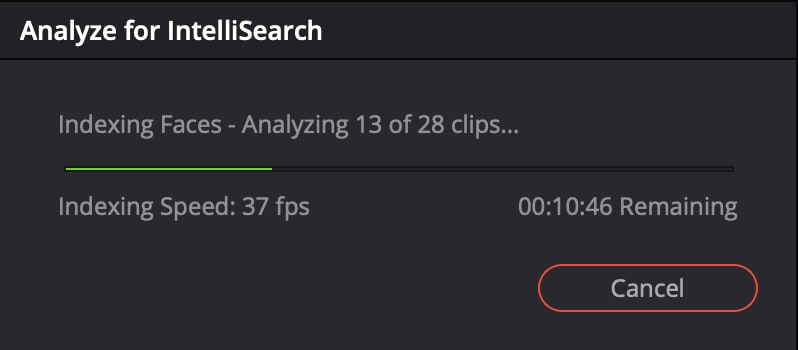
It's working. Resolve is analysing the bin and is about halfway through.
- "13 of 28 clips": it's analysing 28 clips, not 29. The first clip was already done in my test, so it skipped that one.
- 37 fps: about 1.5 times real time for your 25 fps footage, faster than my test clip suggested.
- 10:46 remaining: it should finish in about 11 minutes.
This window is modal, so Resolve is busy until it closes. Leave it alone rather than clicking around, and don't press Cancel.
Looking for IntelliSearch data in the clips
Reading the People field on every La Boca clip
IntelliSearch found faces but didn't name anyone, so a search for the presenter returns nothing yet. It grouped 11 different faces as "Face 1" to "Face 11" and wrote them into each clip's People metadata.
I can make a very good guess from the transcripts, though.
Face 3 is almost certainly the presenter
Face 3 is the only person in every solo piece to camera in the bin:
| Clip | People | Transcript |
|---|---|---|
| 0005 | Face 3 only | "So right now we are in El Barrio La Boca… the birthplace of the tango" |
| 0013 | Face 3 only | "As you can see, La Boca is unbelievably beautiful here…" |
| 0029 | Face 3 only | "All right, behind me is where the Boca Juniors play…" |
A single face, on screen, talking to camera, clip after clip: that's the presenter.
Making the search work
I can't rename faces through scripting, so this part is yours: find Face 3 in the Face Gallery, check it's the presenter, and rename it.
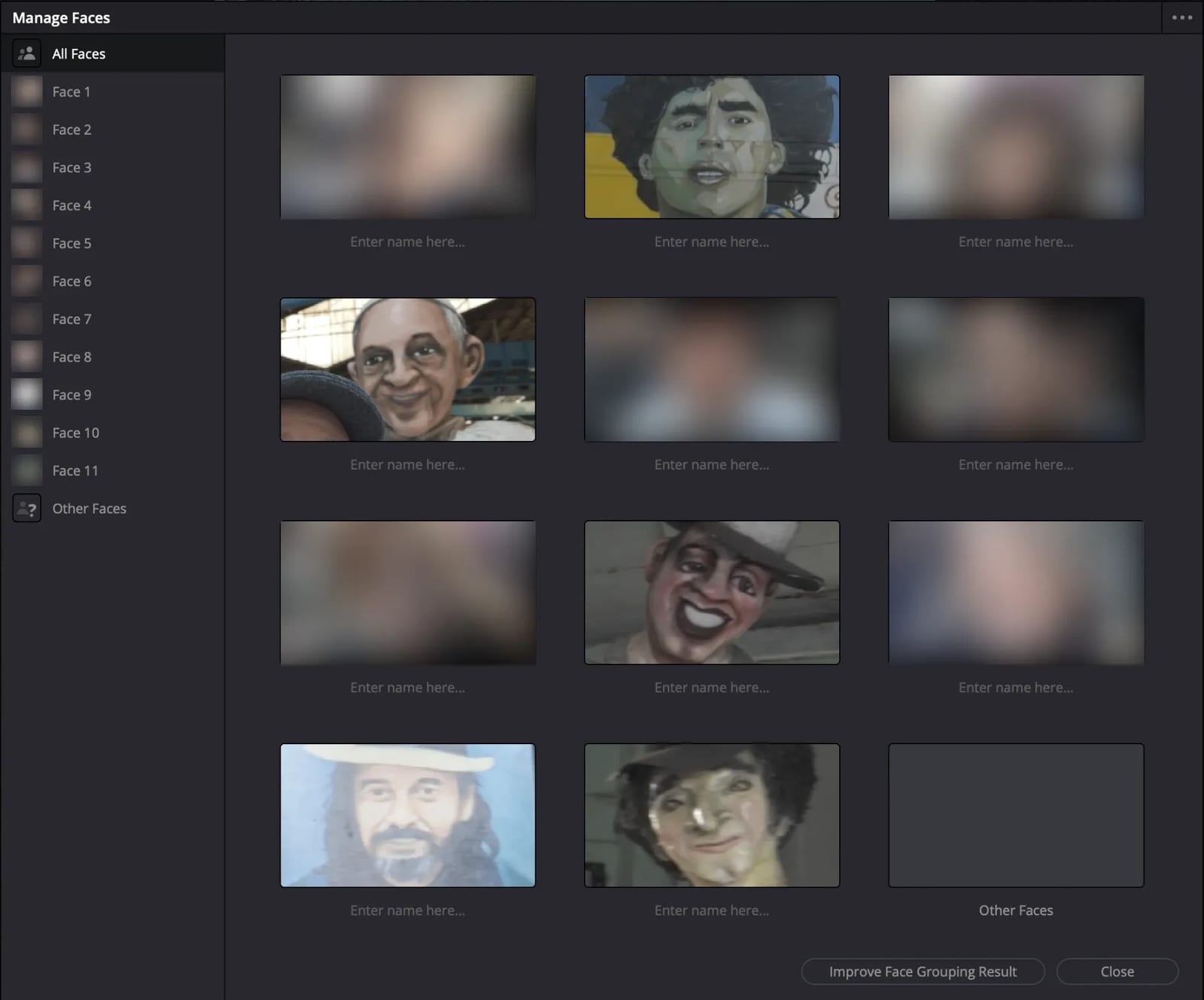
It is funny. The murals and caricature statues in La Boca are famous, so it's no surprise the face detector took them for people. And yes, Manage Faces is where you name people for IntelliSearch.
What's in the gallery
I'm assuming the grid runs in the same order as the sidebar, Face 1 to Face 11.
| Face | What it is |
|---|---|
| 1 | Real person |
| 2 | 🎨 Maradona mural |
| 3 | Woman in a pink cap (real) |
| 4 | 🎨 Pope Francis caricature |
| 5, 6, 7, 9 | Real people |
| 8 | 🎨 Caricature statue in a hat |
| 10 | 🎨 Painted portrait, bearded man in a hat |
| 11 | 🎨 Caricature statue in a cap |
So it found 6 real people and 5 artworks.
Which one is the presenter?
Face 3, the woman in the pink cap, is the one on camera alone in all five solo pieces to camera. To be sure the grid matches the numbers, click Face 3 in the sidebar first and check it shows her clips.
What to do with the artworks
I'd name them. Searching "Maradona" and finding every shot of that mural is useful for La Boca.
That's disappointing, but it matches the reviews. They praised the faces and described the object search as hit and miss. A brand name is also one of the harder searches you could give it.
- It's a brand, not an object. Visual search models are mostly trained on general things: bottle, sign, car, dog. Recognising a specific logo is a separate skill.
- Logos in your footage are small and brief. In handheld 4K walk-and-talk, a Coca-Cola sign is usually a small patch of the frame for a second or two, often at an angle, blurred or partly hidden.
- It samples frames rather than checking every one. A logo that flashes past can fall between the frames it looked at.
I can't see what the search returns, so I'm relying on your judgement of hits and misses.
Reading the People field again
The name came through: the presenter is tagged on 11 La Boca clips, the same 11 I listed for Face 3.
So the face grouping was right, and so was the transcript evidence that Face 3 was the presenter. What I got wrong was matching the grid pictures to the face numbers: I assumed the grid ran in number order, and it doesn't. You were right to check in the sidebar.
In short, the face results look solid, and the object search (Coca-Cola) is the weak part. That matches what the reviews said.
That’s the end of my first Claude-controlled session with DaVinci Resolve. Thanks for watching. Hope you found it interesting.
← First session in ResolveThat’s the end of my first Claude-controlled session with DaVinci Resolve. Thanks for watching. Hope you found it interesting.