
How do you grade each camera in shoot order with Baselight Editions in Media Composer?
Technique: Timecode + camera sorted sequence
In short
- Sort order
- Timecode, then source (typically Tape or Disk Label)
- Back to the cut
- Multi-Apply
- Best for
- Long-form projects with multiple cameras and shoot days
Create your own grading sequence so you can work through the material one camera at a time, in shoot order. Then, use Multi-Apply to copy your grades into the locked cut.
Why grade from a sorted sequence?
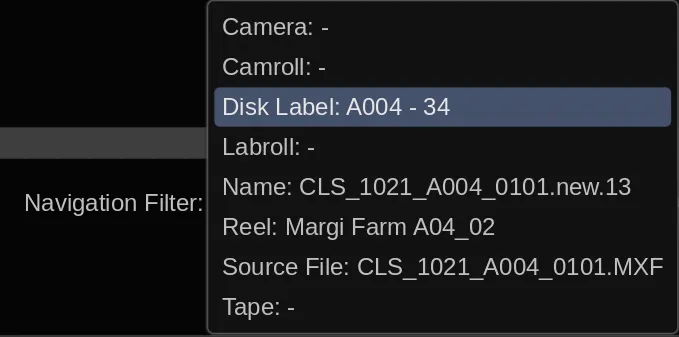
In Editions, you can set Navigation Filters such as Disk Label, Reel or Tape to jump between shots from the same source. In the locked cut, though, those jumps follow edit order.
The sorted sequence lets you step through each camera’s shots in the order they were recorded. It’s quicker to apply grades to similar shots, and it’s easier to see how those shots hold together. If the light was changing during the shoot, you can see where the exposure starts to shift as you step through the shots.
How do you build the sorted sequence?
In Media Composer, you are going to adjust your bin settings so that you can see all clips associated with your locked cut. I will also have a bin view setting that is just Start, Tape, Disk Label. When ready, sort the timecode column first, then sort by source, typically Tape or Disk Label, but it can vary by project. A quick look will indicate if your new sorted bin is ascending. This means that the top most clip will be the earliest recorded in terms of timecode and source. You would hope to see for example, a clip recorded first thing in the morning on day one and the clip below that from a moment later.
Next I will create a new empty sequence in a new bin. I will grab all of my sorted clips and drag them into the empty sequence. Once this sequence is populated, set up a filler track on V2 as your grade layer, then work through it camera by camera. Combined with custom setup labels, I find that this speeds up my grading with Editions in Media Composer.
How do you get the grades back into the locked cut?
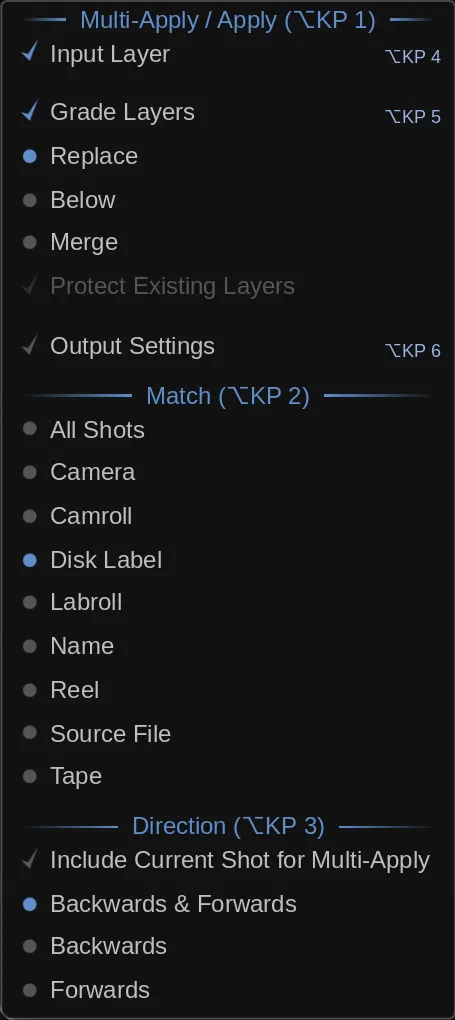
Once you’ve graded the sorted sequence, use Multi-Apply to copy your grades into the locked cut. Select the Match filter that best suits your project. I will typically use Disk Label, Reel or Tape.
Where does this come from?
It’s an old technique from when I used the Symphony toolset. There is a Merge function that copies from one sequence to another. Editions provides more flexibility for the same process with Multi-Apply. A poor man’s group grading workaround, if you like.