How do you track which shots you’ve graded in Baselight Editions for Media Composer?
Technique: Clip colour as grade status
In short
- Visual marker
- Clip source colour
- Shows in
- Sorted sequence and locked cut
- Reliability
- Manual flag
- Best for
- Multi-session projects
Use clip source colour and timeline display settings to track grade or no grade in your Media Composer sequence when grading with Baselight Editions. A simple technique to track progress across a multi-session project.
Why can’t you see grade status in the timeline?
On a long-form project graded across multiple sessions, there’s no way to tell which shots are finished just by looking at the timeline. Media Composer doesn’t show the state of any effect. An Editions effect left at its defaults looks exactly like one carrying a full grade, whether it sits on a filler track above picture or directly on the clip. Parking the playhead on a clip will show you the result of the grade, but that doesn’t scale across a full series.
How do you mark a shot as graded?
When I finish grading a group of shots, I step out of the Baselight UI and give the clips I’ve just graded a source colour of my choosing. I generally pick one colour for all Cam A clips, and a different colour for Cam B, and so on. This visualization carries into both my sorted sequence and the locked cut. It’s a quick and simple way to see which clips have been graded and what’s left to do.
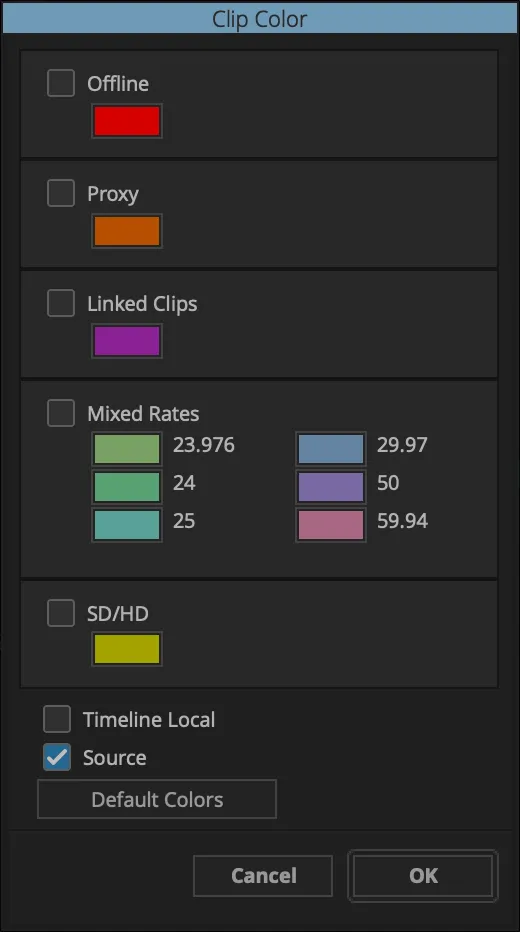
In the timeline’s Clip Color settings, tick Source so source colours show in the sequence.